TyphoonSim Scope
Description of the TyphoonSim Scope component in Schematic Editor
When TyphoonSim Scope is added to your model, you can easily observe the desired signals from your model. It also provides a means for a basic preview of the captured signals.
Captured signals can be saved to disk in various data formats.
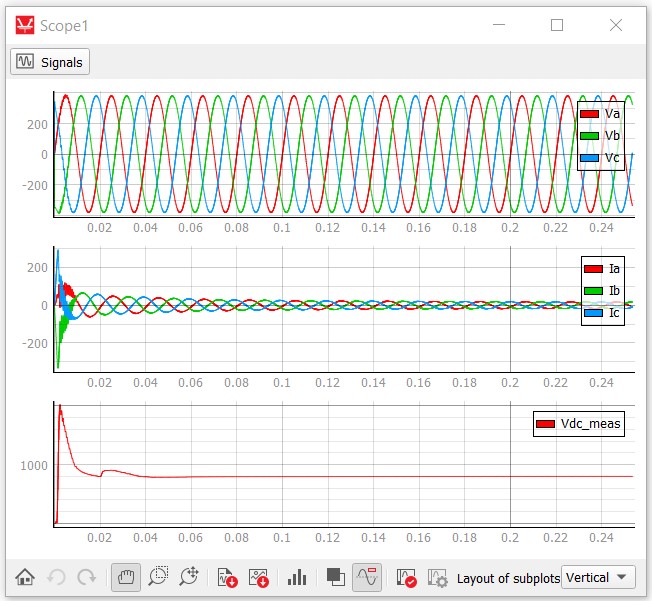
Clicking  opens
the Signals window (Figure 3). This window contains a dynamic table where you can easily add (
opens
the Signals window (Figure 3). This window contains a dynamic table where you can easily add ( ) and remove
(
) and remove
( ) analog
or digital signals. In the first column, there is a combo box with all analog and digital
signals that exist in the simulated model. You can select a signal from the combo box or from
the tree preview by clicking
) analog
or digital signals. In the first column, there is a combo box with all analog and digital
signals that exist in the simulated model. You can select a signal from the combo box or from
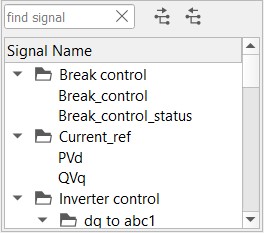
the tree preview by clicking  (Figure 4). Double-clicking on a
signal in the tree selects that signal.
(Figure 4). Double-clicking on a
signal in the tree selects that signal.
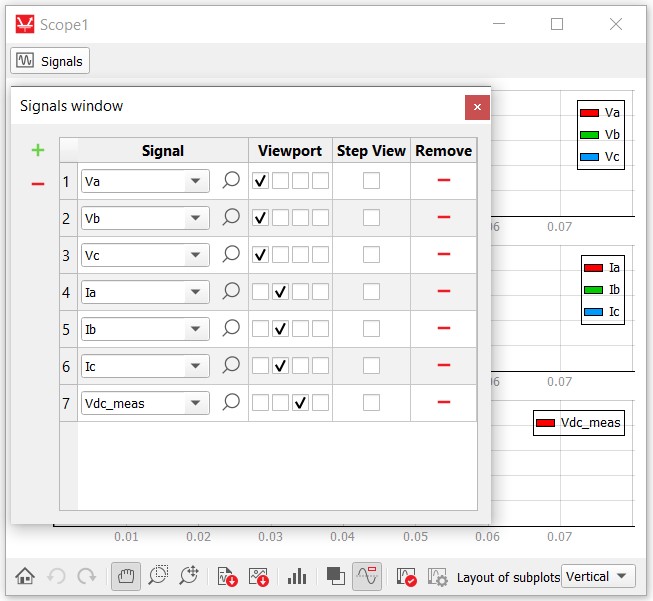
In the second column you can find check boxes that represent subplots. By checking them, you can select on which subplots the signal is going to be plotted. All subplots share the same x-axis zooming level.
The third column contains the Step View option which allows displaying signal values in discrete steps rather than in a continuous manner.
The last column contains an option for deleting the corresponding row from the table.
In addition to the basic options, Scope has these additional options:
 Undo action - undo
an action on the Capture widget (pan, zoom, and any X and Y
axis range changes).
Undo action - undo
an action on the Capture widget (pan, zoom, and any X and Y
axis range changes). Redo action - redo
an action on the Capture widget (pan, zoom, and any X and Y
axis range changes).
Redo action - redo
an action on the Capture widget (pan, zoom, and any X and Y
axis range changes). Pan move - pan axes.
 Rectangle zoom - zoom with an arbitrary rectangle selector.
 Constrained zoom - zoom using a constrained vertical or horizontal rectangle
selector.
Constrained zoom - zoom using a constrained vertical or horizontal rectangle
selector. Zoom to fit - automatically adjust the plot view so all data points are visible within the window
 Zoom to user range - automatically adjust the plot view according to the User specified zoom
 User Range settings - Opens the dialog for editing User specified zoom
 Save signals to file - opens Signal Data Saving, which allows you to save all or selected signals to various data formats.Note: Currently supported formats are: CSV, HDF5, NI TDMS, MAT, MDF4, COMTRADE CFF.
 Export to PNG image - takes a screen-shot of the Capture widget's
plots and saves it as a .PNG image.
Export to PNG image - takes a screen-shot of the Capture widget's
plots and saves it as a .PNG image. Export captured signals to Signal Analyzer tool - opens the Signal Analyzer tool and loads the currently captured
data.
Export captured signals to Signal Analyzer tool - opens the Signal Analyzer tool and loads the currently captured
data. FFT analysis - opens the FFT Analysis window and applies FFT to the currently captured data.
-
 Invert background color - inverts the background plot surface colors.
 -
 Show/hide legend - shows or hides the legend with signal names.
 -
 Under the mouse action - when enabled, this feature displays the x-value and corresponding signal values at the mouse position, but only when the cursor is hovering over a valid data point.
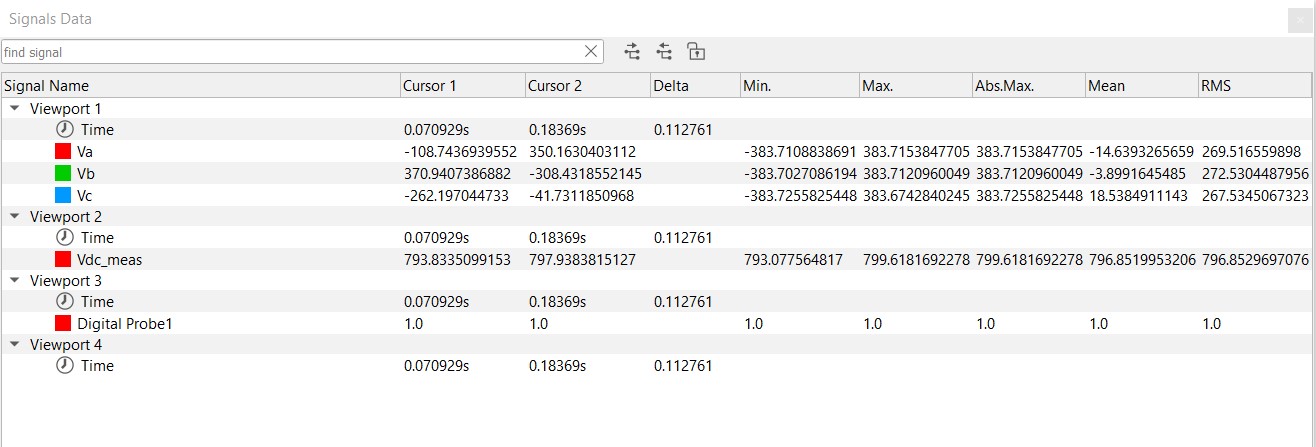
Signal data pane (Figure 5) enables you to measure the signals values at specified locations. Values that can be measured are:
- Positions of cursors 1 and 2
- Delta values
- Minimum (Min.), maximum (Max.), and absolute maximum (Abs. Max.)
- Mean and RMS values
Right click context menu
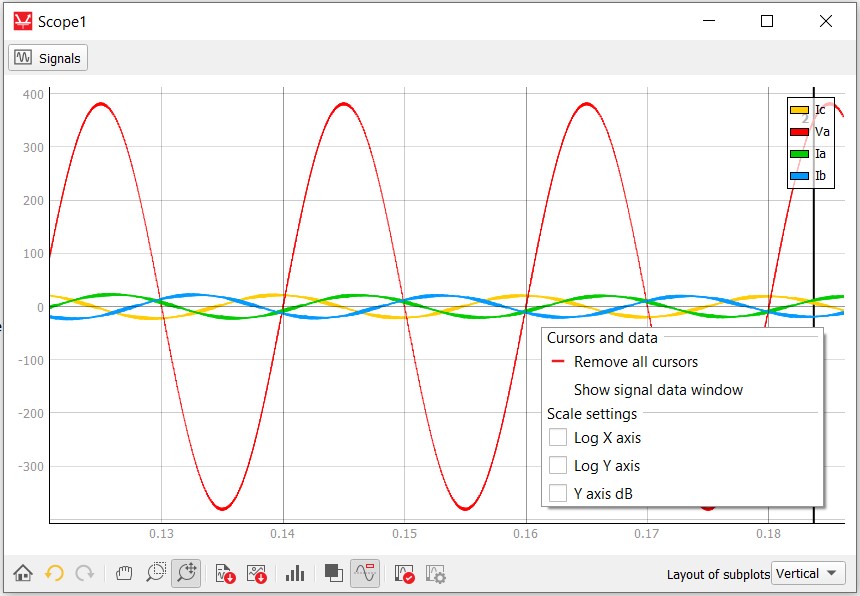
By right clicking on a plot, you can bring up the context menu which holds various actions that you can perform on the plot. Some allow you to change the currently displayed scales, while others allow you to add and remove cursors which are used for detailed signal analysis.
-
Log X axis - by clicking on this action within the context menu, you will toggle between linear and log scale of the X axis.
- Log Y axis - by clicking on this action within the context menu, you will toggle between
linear and log scale of the Y axis. Note: This action can only be performed if the signals contain no non-positive values. If they do contain non-positive values, an information dialog will be shown and the scale will remain linear.
- Y axis dB - by clicking on this action within the context menu, you will toggle between
linear and dB scale of the Y axis. This action performs logarithmic scaling of the signal
values, with an additional multiplication of values by a factor of 20.Note: Just like normal log scaling of the Y axis, the same conditions must be met (no non-positive values can be present).
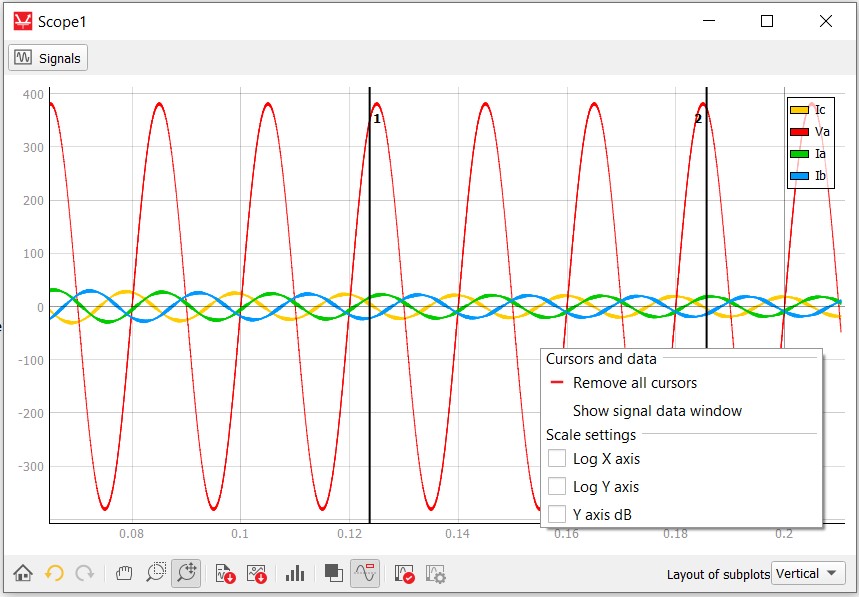
You can place cursors by right-clicking the menu inside the plot surface (Figure 7).
There is a maximum of two cursors that can be placed.
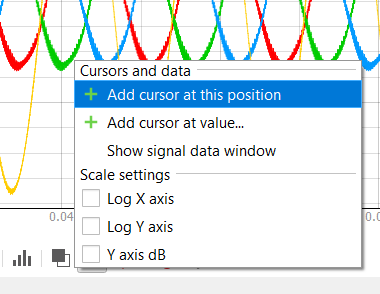
Once the cursor is placed it can be moved by left-clicking it and holding it.
A specific cursor can be removed by right-clicking it and choosing the “Remove cursor” option. If both cursors are placed, right-clicking the plot surface will give you an option to “Remove cursors” which, if selected, will remove both measurement cursors (Figure 8).
If the Signal measurements window is closed, you can reopen it by choosing the Show Signal Data Window from the right click menu (Figure 8).