
Applying Your License
Description of how to apply your license information to your Typhoon HIL Control Center installation.
Applying Your License Information in Typhoon HIL Control Center
After starting the software, you must log in with your User Credentials, in order to activate your license. Click on the login icon in the top right corner (Figure 1) and log in with your e-mail and password. The license will be pulled automatically.
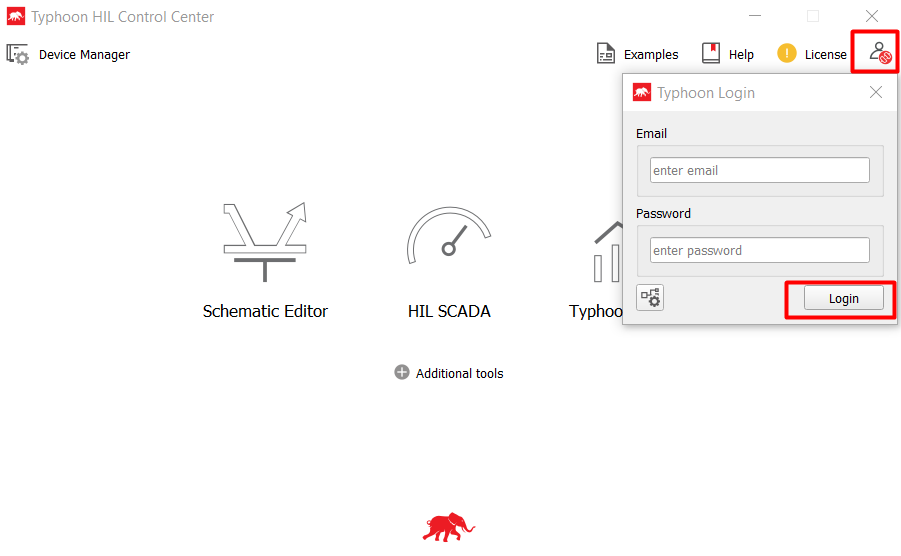
After logging in, you must restart the software to apply the license. If you logged in correctly, after restarting the software, the Login button will appear green. If you requested the license for TyphoonSim and it is approved, you will be able to use TyphoonSim inside the Typhoon HIL Control Center as well.
Alternatively, if you want to change the license manually, follow the steps below.
Manual license import and change
License files can be imported using the License panel in Typhoon HIL Control Center (Figure 2).
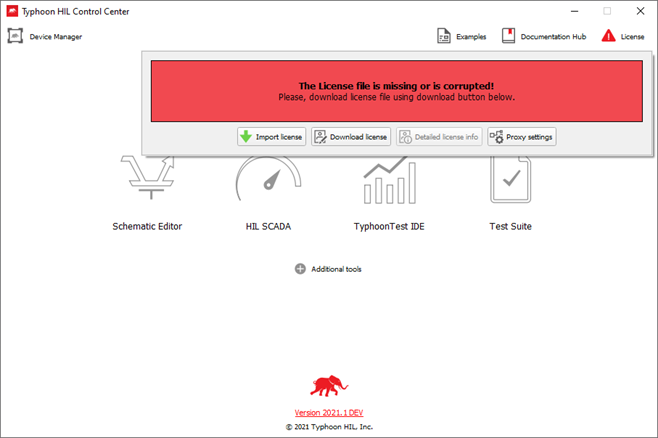
To import the license manually:
- Start Typhoon HIL Control Center
- Click the Download license button
- Enter your site key or activation key
- The license should be automatically downloaded and imported, in which case you can now proceed to step 8
- Alternatively, you can download your license filed directly from your Subscription Portal account page
- Click License -> Import license
- Navigate to, select, and import the license file
- If the license file is successfully imported, the message shown in Figure 3 will popup
Figure 3. Successfully imported license file message 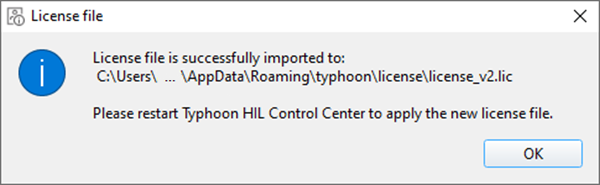
- Restart Typhoon HIL Control Center to apply the new license file
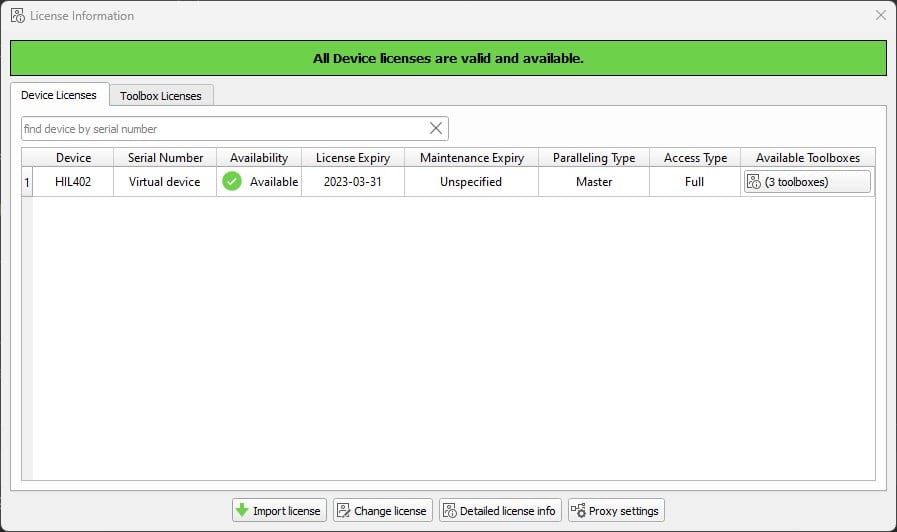
- If the license file is correctly imported, the license button will
appear green, as shown in Figure 4
Figure 4. Successfully imported license 
Once imported, the license will be saved in the license folder (typically C:\Users\[name_of_user]\AppData\Local\typhoon\license).
To change the license manually:
There is a button that allows you to manage/switch between multiple licenses. This is useful when a Virtual HIL user becomes a user of a HIL device, as well as for companies/users who have multiple sites.
- Start Typhoon HIL Control Center
- Click License -> Change license
- Enter your site or activation key
- The new license will be automatically applied
Applying Your License Information to TyphoonSim Software
After starting the software, you must log in with your User Credentials in order to activate your license. Click on the login icon in the top right corner (Figure 6) and log in with your e-mail and password.
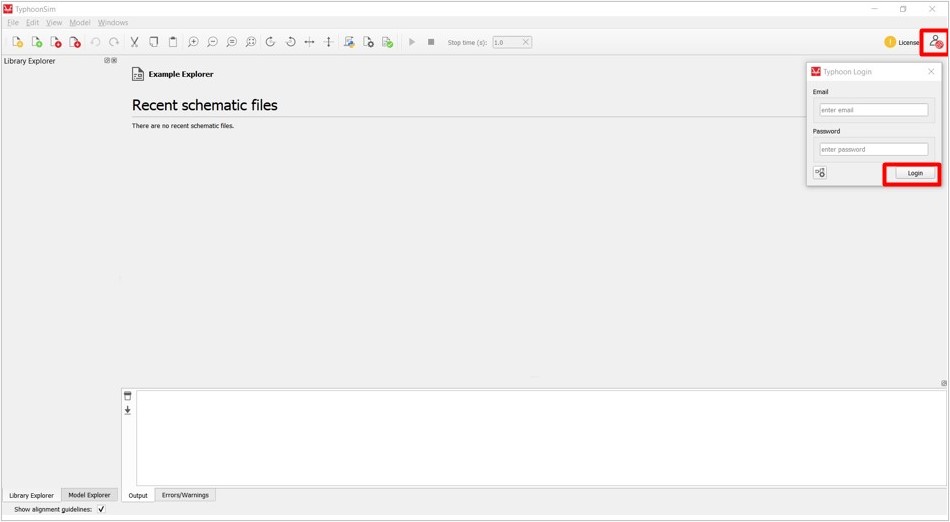
After logging in, you must restart the software to apply the license. If you logged in correctly, after restarting the software, the Login button will appear green.