
PDF templates
Overview of PDF templates, which can be used to define templates for exporting PDF reports.
PDF templates can be used when exporting Allure reports as PDF documents. The PDF templates table (Figure 1) shows information about PDf templates. Here you can create a new PDF templates, update a PDF template or delete an existing one.
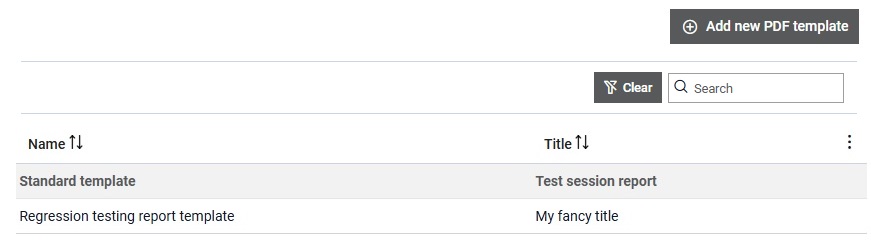
The PDF templates table shows the name of template and its title.
Note: By clicking on the  button, columns of the table
can be customized - hidden or shown depending on the preference. Columns of the table
can be reordered by using drag and drop in the table header. When positioning cursor in
between two columns, cursor for column resizing will show and enable change of the
column's width. All changes made to the table will be automatically preserved.
button, columns of the table
can be customized - hidden or shown depending on the preference. Columns of the table
can be reordered by using drag and drop in the table header. When positioning cursor in
between two columns, cursor for column resizing will show and enable change of the
column's width. All changes made to the table will be automatically preserved.
button, columns of the table
can be customized - hidden or shown depending on the preference. Columns of the table
can be reordered by using drag and drop in the table header. When positioning cursor in
between two columns, cursor for column resizing will show and enable change of the
column's width. All changes made to the table will be automatically preserved. Note: By inserting text in the Search input field, the table rows
are filtered. Filtering is done based on the textual content of the table cells. By
clicking on the  button,
the Search input field is cleared and filtering is cancelled.
button,
the Search input field is cleared and filtering is cancelled.
button,
the Search input field is cleared and filtering is cancelled. PDF template details
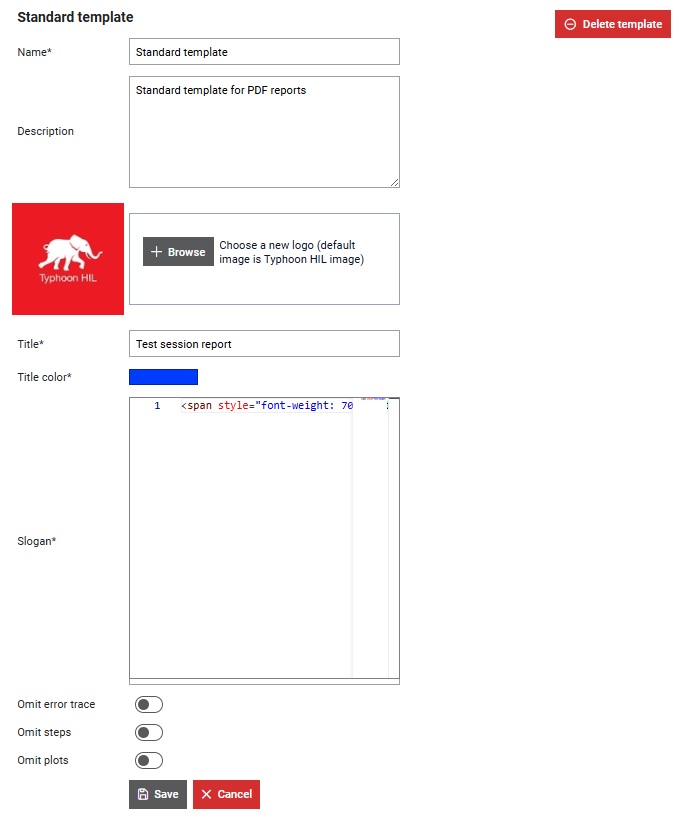
In the Details section, you can update each PDF templates's information, as well as remove a PDF template.
Create PDF template
A new PDF template can be added by clicking on the  button
(Figure 3).
button
(Figure 3).
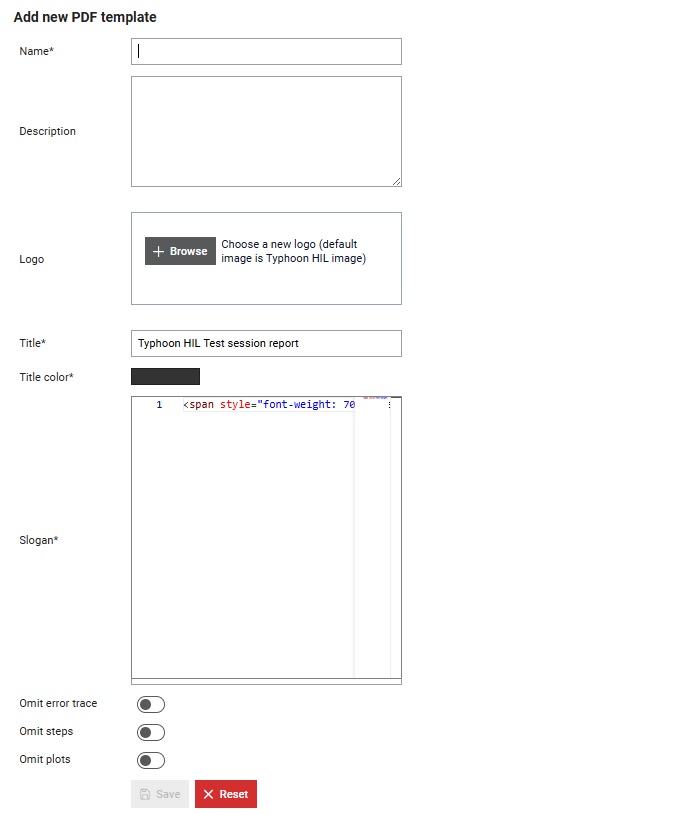
Once you add a new PDF template, you can:
- Give it a name which will be used to refer to it throughout Typhoon Test Hub. Each PDF template name must be unique.
- Optionally define a description.
- Optionally select a logo image (if none is selected, Typhoon HIL logo image is used.)
- Define a title of PDF report.
- Define a title color.
- Define a slogan of the title page of PDF report.
- Choose if error trace is omitted from the details of the executed tests.
- Choose if steps are omitted from the details of the executed tests.
- Choose if plots are omitted from the details of the executed tests.
Note: In order to save a form, all input fields must be valid. Required fields are signed
with *.