In order to grant access to Typhoon Test Hub, an Admin needs to create a new user and provide login information to that user. That User can sign
in to Typhoon Test Hub by filling the form shown in Figure 1.
The Remember me option on the sign in screen allows users to stay logged in for an
extended period, even after the browser or application is closed. When this option is checked
and sign in is successful, users will not need to enter their credentials on their next visit to the application.
Figure 1. User sign in
Update profile
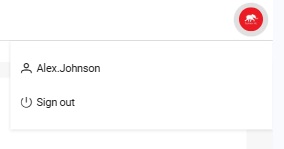
After a user successfully signs in, they can update their profile and change their
information by clicking on , and then selecting the menu option with their username
on it. (Figure 2).
Figure 2. Profile options
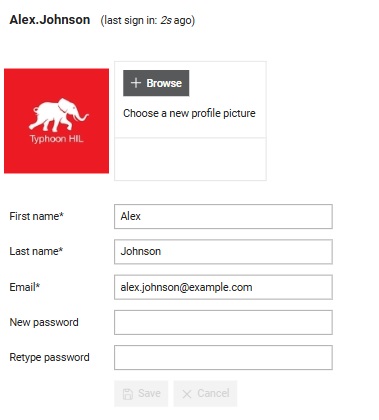
When a user is created, the default picture is the Typhoon HIL logo. A user can
update their picture, first and last name, email and change their password using the
options in Figure 3, located in the Account section
on the profile page.
Figure 3. Update profile form
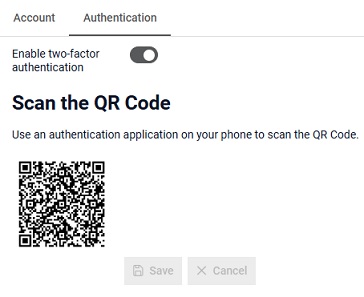
User can enable two-factor authentication in the Authentication
section in the profile page. Two-factor authentication adds an extra layer of
security by requiring two different types of verification before allowing access to
the system. It combines something the user knows (their password) with something
they have (a code from their phone). After entering their password during the
sign in, they must provide a second code, often generated by an app, to confirm
their identity. This makes it much harder for attackers to access an account, even
if they know the password. After the user enables two-factor authentication, they
will be presented with a QR code in the Authentication section of the profile
page, as shown in the figure below. The provided code needs to be scanned using an
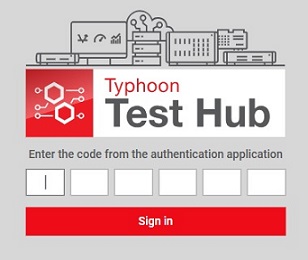
authentication application on the user's phone. Figure 4. Two-factor authentication enabled on profile page The application will then generate a six-digit code, which will be prompted
after entering the username and password upon signing-in as shown in the figure
below. Figure 5. Sign in step with two-factor authentication
If a user enables two-factor authentication but does not setup the
authentication via the authenticator application properly, there is a chance they
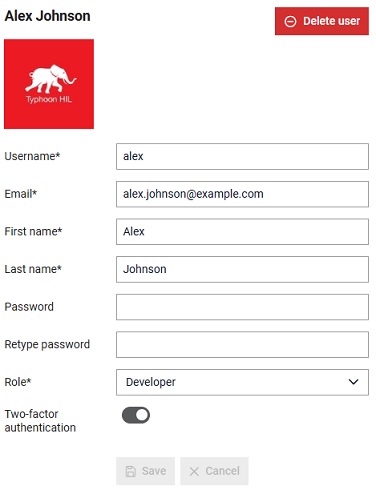
may be locked out of the system. In such cases, admins can disable two-factor
authentication for the user's profile, allowing them to sign in using their existing
credentials (username and password) without needing the two-factor autentication.
This scenario is shown in the figure below. Figure 6. User details with two-factor authentication enabled for the selected
user
Note: Enabling two-factor authentication is not mandatory,
but is recomended.


 , and then selecting the menu option with their username
on it. (Figure 2).
, and then selecting the menu option with their username
on it. (Figure 2).