
Variables
Overview of how to use variables to store values that are often used during executions.
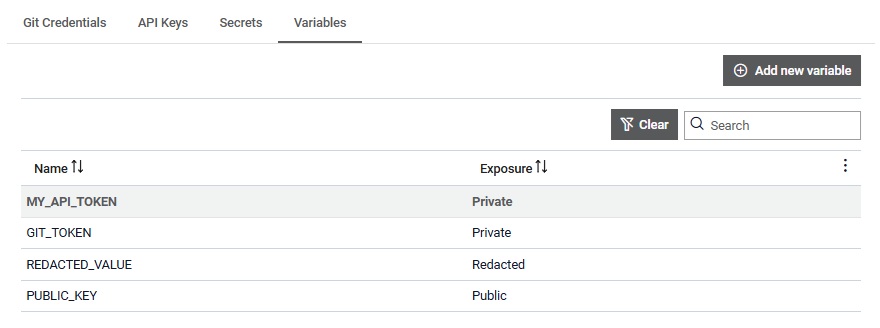
The Variables table (Figure 1) simply shows the name of the variable and exposure.
In the Details section, you can delete a variable by clicking the
 button.
 button, columns of the table
can be customized - hidden or shown depending on the preference. Columns of the table
can be reordered by using drag and drop in the table header. When positioning cursor in
between two columns, cursor for column resizing will show and enable change of the
column's width. All changes made to the table will be automatically preserved.
button, columns of the table
can be customized - hidden or shown depending on the preference. Columns of the table
can be reordered by using drag and drop in the table header. When positioning cursor in
between two columns, cursor for column resizing will show and enable change of the
column's width. All changes made to the table will be automatically preserved.  button,
the Search input field is cleared and filtering is cancelled.
button,
the Search input field is cleared and filtering is cancelled. Variable details
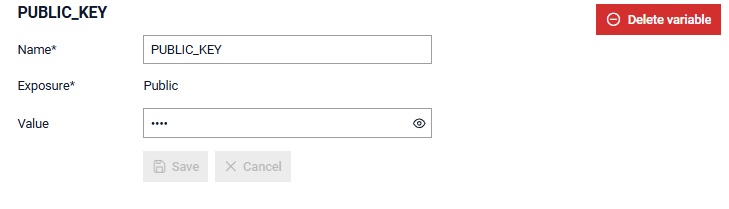
From the variable details menu (Figure 2), you can manage data about your selected variable, such as update the name and value.
Create variable
A new variable can be added by
clicking on the  button. This opens the new variable dialog window (Figure 3).
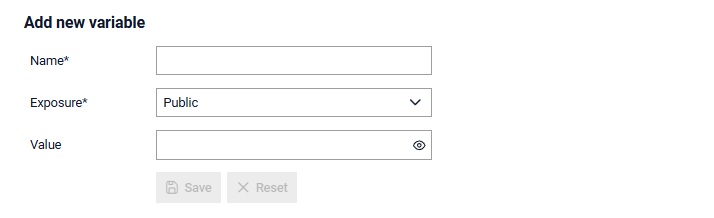
To make a new variable, you must:
- Assign it a name which will be used to refer to it throughout Typhoon Test Hub. This name must be unique and cannot start with TTH_ prefix.
- Define variable exposure level. You can choose one of following values that
will affect how the variable is handled and dispayed:
- Public - variable value can be seen in the variable configuration dialog, and is displayed in the job execution logs.
- Redacted - variable value can be seen in the variable configuration dialog, but is redacted (masked) in the job execution logs.
- Private - variable value cannot be seen in the variable configuration dialog, and is redacted (masked) in the job execution logs.
- Enter a variable value.
Once a variable is created, its exposure cannot be modified. Depending of the chosen exposure level variable's value is redacted (masked) in the job execution logs and replaced with ***. Job variables can be used inside the Execute script job step as environment variables with name TTH_VARIABLE_{VARIABLE_NAME}.
Usage of variables
Variables can be used within Jobs configuration where they can be assigned to the job and be accessible during the job execution.